How to Delete all Spam Comments in WordPress?
Learn how to delete hundreds of spam comments in WordPress with just one click using Screen Options. A simple trick every WordPress user should know.

Good blogs and websites tend to get many spam comments and we content creators just hate all the spam and promotion clutters, right?
If you have been deleting all these messages or comments 10 at a time maximum, then don't worry, today I will show you how you can delete all comments from spam or trash with just one click. To complete this task we are not going to use any plugins, it's just a simple WordPress trick.
Note: This trick will not only work for deleting your comments in the trash, you will also be able to approve, mark as spam, trash comments, etc.
Why WordPress Attracts So Many Spam Comments
Comment spam is automated. Bots crawl the web looking for open comment forms and post links to boost their own SEO or push scam products. A site that ranks even moderately well can collect hundreds of these in a week. Left unchecked, spam comments hurt you in three ways: they bury genuine reader discussion, they can link out to malicious sites (which search engines notice), and they bloat your database. Clearing them regularly keeps your site fast and trustworthy.
#1 Visit Comment Section -
I don't need to tell you how you can visit your comment section if you are a WordPress user, it's just on the left sidebar. Click on the comments, and you'll be able to see all of the comments you've received.
There are 4 main section for comments pending, approved, spam & trash.

As you can see above, we've more than 211 trash comments in pending, let's delete them all at once!
#2 Search for Screen Option -
WordPress has an option, if you scroll on to the top of the comments or any page, you'll see a Screen Options tab, like the below image.

Click on Screen Options & in Pagination section select the number of items per page to 200, or depending on how many comments do you have.
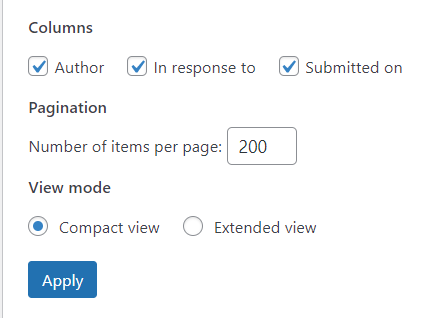
Note: If you have a shared hosting, don't select more than 200 at once, my WordPress was crashed when I selected 400 comments at time.
After you've changed the settings as per the above image, then click on Apply.
#3 Delete Using Bulk Action -
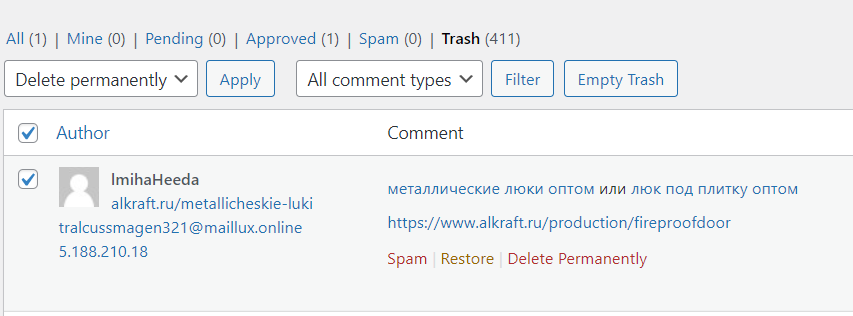
Now, you can select all comments by clicking an empty checkbox near the Author tab, and select the bulk option to Delete Permanently.
All comments will be deleted just in a seconds. You can not only use this for deleting comments but for Approving comments, or Unapproving, and much more.
As the Screen Option setting is available on every page of WordPress like Posts, Pages, etc. You can easily follow this trick to delete 100s of items that you want in just one click.
A Word of Caution Before You Bulk Delete
Delete Permanently skips the trash and removes comments immediately — there is no undo. Before you use it on the main "All comments" list, quickly scan for false positives. Spam filters occasionally flag a genuine reader, especially if their comment contained a link. When in doubt, use Move to Trash first; trashed comments are auto-deleted after 30 days, giving you a safety window. Reserve Delete Permanently for the Spam and Trash tabs, where everything is already junk.
Stop Spam Before It Arrives
Bulk-deleting is a cure, but prevention saves you the chore entirely. A few settings reduce the flood dramatically:
- Install an anti-spam plugin. Akismet ships with WordPress and filters the vast majority of bot comments automatically. Alternatives like Antispam Bee work without an API key.
- Turn on comment moderation. Under Settings → Discussion, require that a comment be manually approved before it appears, or hold any comment containing more than one link.
- Close comments on old posts. In the same Discussion settings, automatically close comments after 14–30 days. Bots overwhelmingly target aging, well-indexed posts.
- Add a simple challenge. A lightweight CAPTCHA or honeypot field stops most automated submissions cold.
Combine these and your manual clean-ups go from weekly to rare.
Conclusion
Deleting hundreds of spam comments doesn't require a plugin or tedious clicking — the built-in Screen Options trick lets you clear them in one bulk action. Pair that with an anti-spam plugin and stricter discussion settings, and you'll spend far less time moderating and more time creating.
I hope this post was helpful, if it was share it on social media and let your blogger friends know this simple trick!